This article covers the key connection settings required for stable proxy operation. Some of these settings are only available on phones with ROOT access or a configured Owner Mode .
Essential Connection Settings
Remote Device Reboot (ROOT or Owner Mode only)
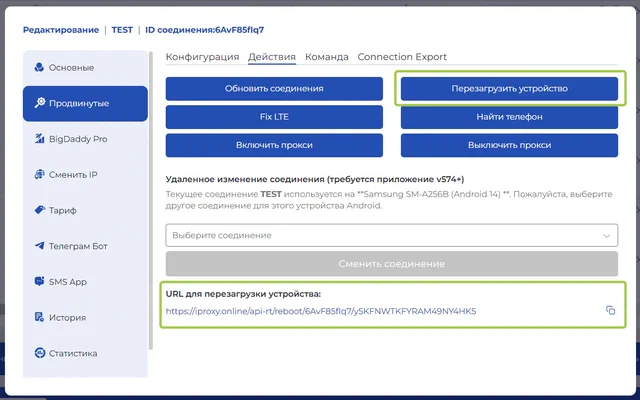
Remote reboot is the primary feature available on phones with root access or in Owner Mode. For stable proxy operation, it is important to reboot the phone periodically. First, rebooting frees up RAM. Second, it refreshes and restores the network connection — over time, a mobile network can drop out or become unstable, which directly affects proxy performance. Scheduled reboots also prevent freezes and crashes in both the app and the phone itself.
There are several remote reboot options.
- One-time reboot triggered from your dashboard via a button or link.
- Schedule an automatic reboot.
Scheduled reboot has a key advantage: even if the phone freezes and stops responding to external commands — such as push notifications or a remote reboot triggered from the dashboard — it will still restart automatically at the configured time and resume normal operation.
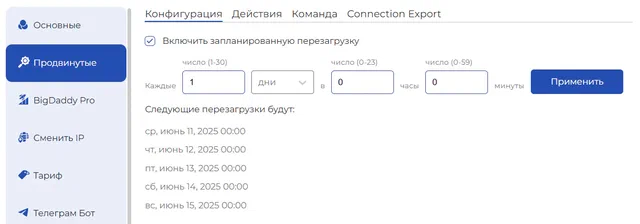
- Reboot the phone if there is no mobile internet for N minutes.
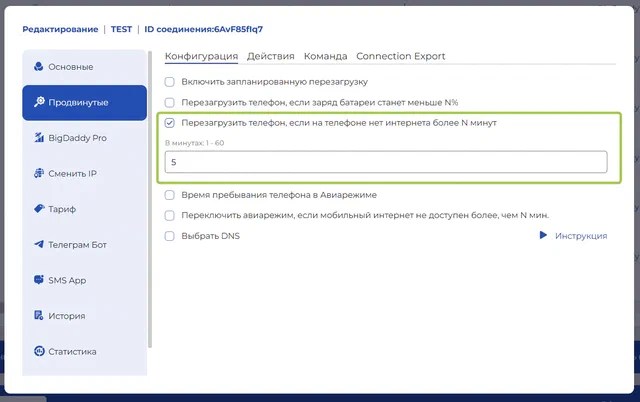
This setting reacts automatically to a lost mobile internet connection. We recommend setting it to 5 minutes. If internet does not return within that time, the phone reboots. This will restore proxy operation as long as the phone can reconnect to the mobile network after the reboot.
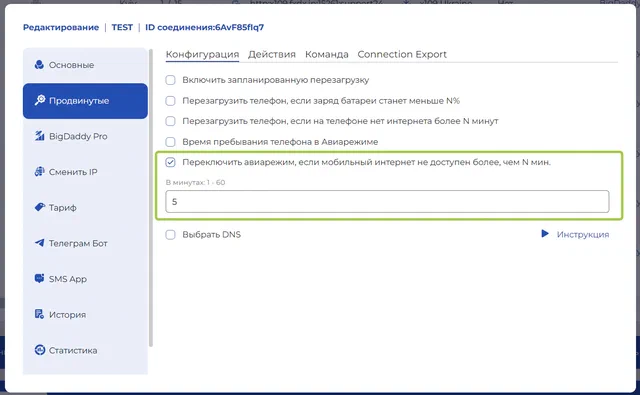
Toggle Airplane Mode When Mobile Internet Is Unavailable (all phones)
Toggle Airplane Mode if mobile internet has been unavailable for more than N minutes — this feature works on all phones and can serve as an alternative to a full reboot. Briefly switching Airplane Mode on and off forces the device to reconnect to the mobile network.
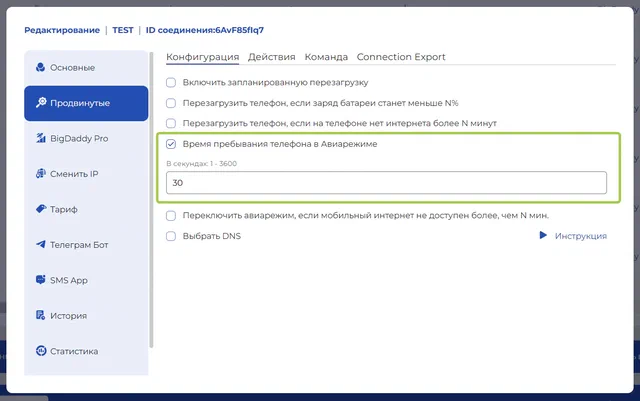
Airplane Mode Duration (all phones)
This setting controls how long the phone stays in Airplane Mode. A few seconds (the default) is usually enough to trigger an IP rotation. However, some mobile carriers only assign a new IP address if the phone has been in Airplane Mode for a longer period — for example, 30 seconds or more. If you notice that the IP address does not change after toggling Airplane Mode, try increasing this value.
Additional Connection Settings
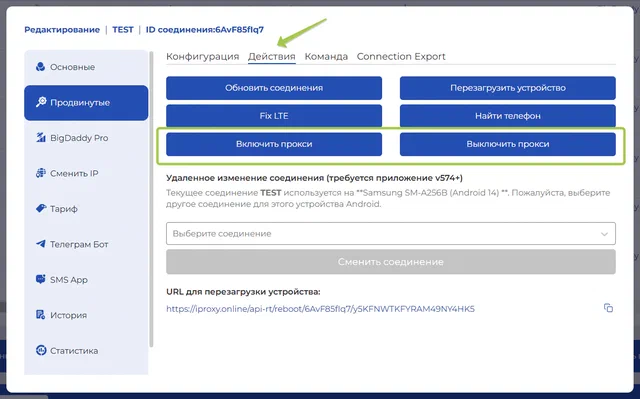
Actions → Disable Proxy / Enable Proxy (all phones)
These buttons in the dashboard let you remotely enable or disable the connection. If you need to temporarily pause or resume proxy operation, you can do so without physical access to the phone.
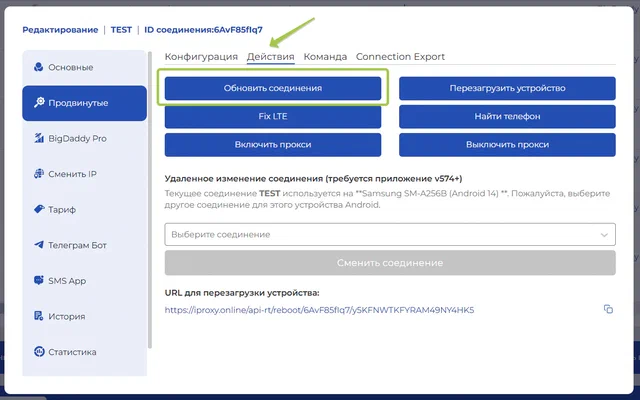
Actions → Refresh Connection (all phones)
This reconnects via OpenVPN. This simple action can restore proxy operation when it has dropped.
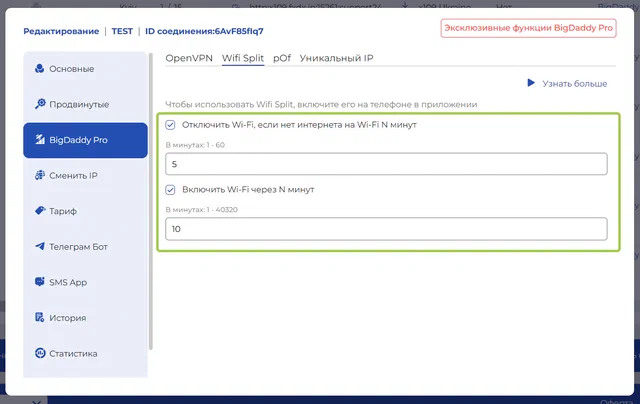
Wi-Fi Split (all phones on the BigDaddy Pro plan)
This feature significantly reduces SIM card traffic consumption and increases proxy speed by routing traffic through Wi-Fi, while keeping the external IP as a mobile IP. We covered this feature in detail in the blog . In this article, we want to highlight two specific settings:
Disable Wi-Fi if there is no internet on Wi-Fi for N minutes
If Wi-Fi stops working (i.e., traffic can no longer flow through Wi-Fi on the phone) and this setting is disabled, the phone will keep trying to use Wi-Fi unsuccessfully — and as a result, the proxy will stop working. This setting disables Wi-Fi in that scenario, forcing iProxy to use mobile internet only. We recommend setting this to 5 minutes.
Re-enable Wi-Fi after N minutes
After Wi-Fi is disabled due to a lack of internet, the phone will automatically try to reconnect to Wi-Fi after the specified interval. This allows traffic savings to resume as soon as the Wi-Fi internet connection is restored. We recommend setting this to 10 minutes.
Still have questions about the settings? Reach out to support — we are always happy to help!