Key Takeaway: To disable Android Battery Saver and Adaptive Battery on a 24/7 mobile-proxy phone, turn both system toggles off (Settings → Battery), set the Battery Saver schedule to Never, and on Pixel 6a+ or Samsung One UI 6.1+ enable the 80% charge limit under Battery → Battery health (Pixel) or Battery → Battery protection (Samsung). Together with per-app Unrestricted , these four settings cover everything Android’s user-facing battery menus expose to a proxy operator.
What this guide changes
A 24/7 mobile proxy is a phone that you plug in once and forget about. Android, by default, is designed for the opposite use case: a phone that lives in a pocket, runs on battery for a day, and conserves power aggressively when idle. Three system-level features carry out that power-saving on Android 9 through 16: Battery Saver, Adaptive Battery (called “Battery Manager” on A9–A11), and the per-app battery optimization picker that those features influence. Each one is harmless on a personal phone and corrosive to proxy uptime.
This guide turns the first two off, per Android version. It also covers the 80% charge limit on Pixel 6a and later and Samsung Galaxy phones running One UI 6.1+. Those are the two broadly documented, fleet-friendly fixed 80% cap paths in 2026: easy to miss in the Battery menu, but the single highest-impact toggle for long-term phone health. For every other OEM — and as a defensible choice on Pixel and Samsung too — a smart plug + ADB cycling script enforces the same 30–80% window in hardware, immune to OEM firmware updates that revert software settings.
Per-app Unrestricted for iProxy and OpenVPN — the other battery setting you have to touch on every proxy phone — is covered in our companion guide . The two articles together cover everything Android battery management exposes to the operator on a phone in your Android proxy fleet .
Three system features get turned off, and one gets turned on:
| Feature | Default | Set to | Why it matters for proxies |
|---|---|---|---|
| Battery Saver | Off | Off, and never let it auto-trigger | Throttles background sync, defers jobs, dims/freezes apps |
| Adaptive Battery / Battery Manager | On | Off | Demotes apps into restricted standby buckets based on usage patterns |
| Battery optimization (per app, iProxy + OpenVPN) | Optimized | Unrestricted | Covered in the companion guide |
| Charge limit (Pixel / Samsung built-in; smart plug + ADB for the rest, and a stronger choice on any fleet) | Off / 100% | Limit to 80% | Calendar aging at high state-of-charge is the dominant failure mode on plugged-in phones |
A plugged-in proxy phone does not need any of the saving features. It has wall power. Every minute they spend “optimizing” something costs you uptime and gains you nothing.
Jump to your version
⚠️ All four settings (Battery Saver off, Adaptive Battery off, 80% cap on , plus per-app Unrestricted ) are required. Why?
| Version | Section |
|---|---|
| Android 16 | Android 16: A15 entry, A13 destination |
| Android 15 | Android 15: both toggles on one screen |
| Android 13–14 | Android 13: separate Adaptive preferences screen |
| Android 12 | Android 12: same flow, Material You redesign |
| Android 10–11 | Android 10 and 11: Battery Manager on its own page |
| Android 9 | Android 9: simplest Battery Saver, distinct Battery Manager |
Across every version the routes are short — typically one or two settings screens — and the change sticks across reboots on stock Android.
Android 16: A15 entry, A13 destination
A16 keeps the Battery Saver page layout from A15 — same “Use Battery Saver” pill toggle at the top, same “Schedule and reminders” section — but the inline Adaptive Battery toggle from A15 is gone. In its place is a tappable Adaptive Battery row that opens a separate Adaptive preferences screen, identical to the one on A13.
- Settings → Battery → Battery Saver
- Confirm Use Battery Saver is Off and “Manage when Battery Saver turns on” is set to no schedule.
- Tap the Adaptive Battery row (no inline toggle — the row navigates to a sub-screen).
- On the Adaptive preferences screen that opens, toggle Use Adaptive Battery to Off.
That sub-screen looks the same as the A13 one — see the screenshot in the Android 13 section below.
Android 15: both toggles on one screen
A15 collapses Battery Saver and Adaptive Battery onto a single screen. One trip, one screen, both toggles plus the schedule.
- Settings → Battery → Battery Saver
- Confirm the top Use Battery Saver toggle is Off.
- Tap Adaptive Battery to expand the section, then toggle Use Adaptive Battery to Off.
- Under Schedule and reminders, confirm “Manage when Battery Saver turns on” is set to no schedule.
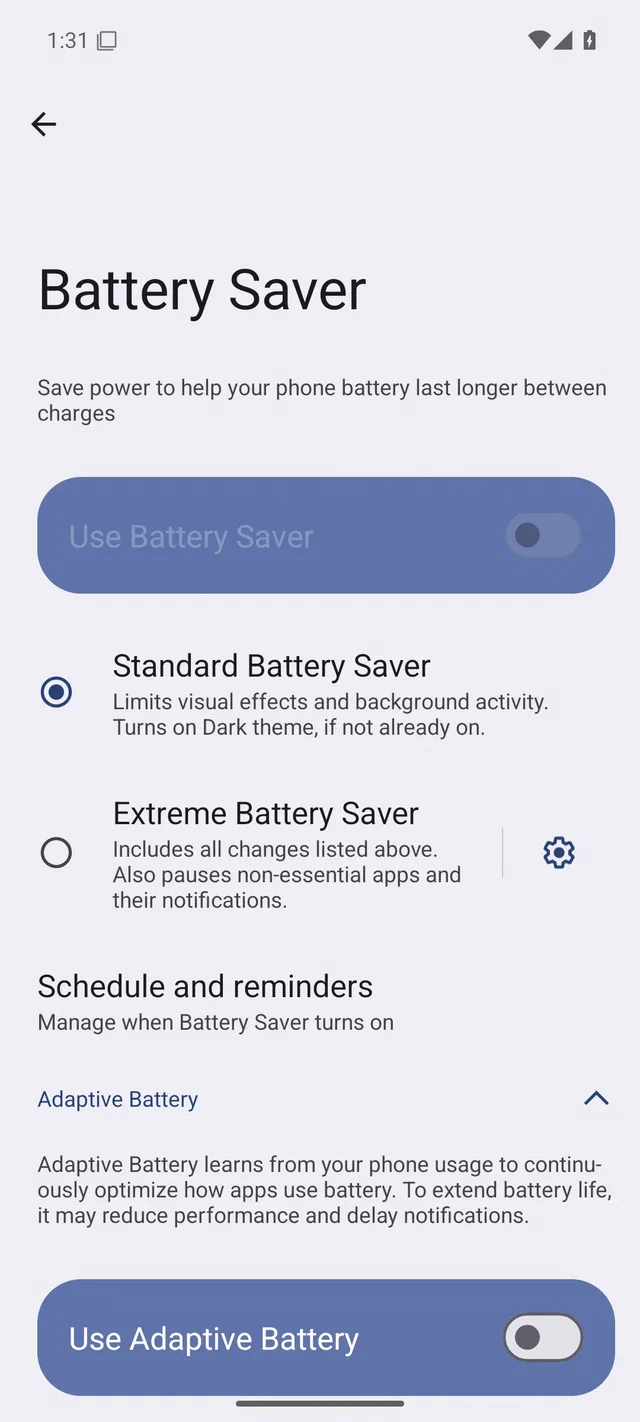
That’s both system-level battery features off on one screen.
Android 13: separate Adaptive preferences screen
A13 splits the two features: Battery Saver sits at the top of Settings → Battery, and the Adaptive Battery toggle is one level deeper under Adaptive preferences. A14 uses the same UI — no relevant battery-UX changes shipped with that release.
Battery Saver — disable and remove the schedule:
- Settings → Battery → Battery Saver
- Confirm Use Battery Saver is Off.
- Tap Set a schedule → No schedule.
The A13 Battery Saver page is visually identical to A12 — see the screenshot in the next section.
Adaptive Battery — disable:
- Settings → Battery → Adaptive preferences → Adaptive Battery
- Toggle Use Adaptive Battery to Off.
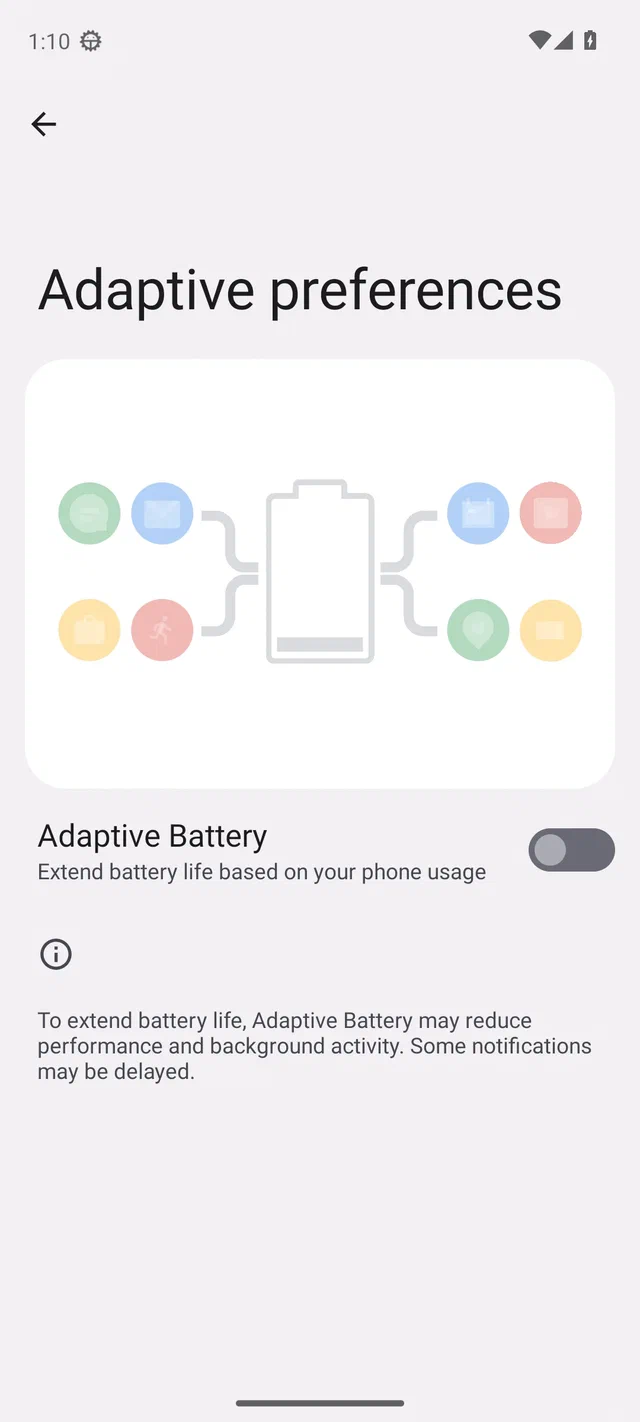
This is also the destination screen for the A16 tap-through described above.
Android 12: same flow, Material You redesign
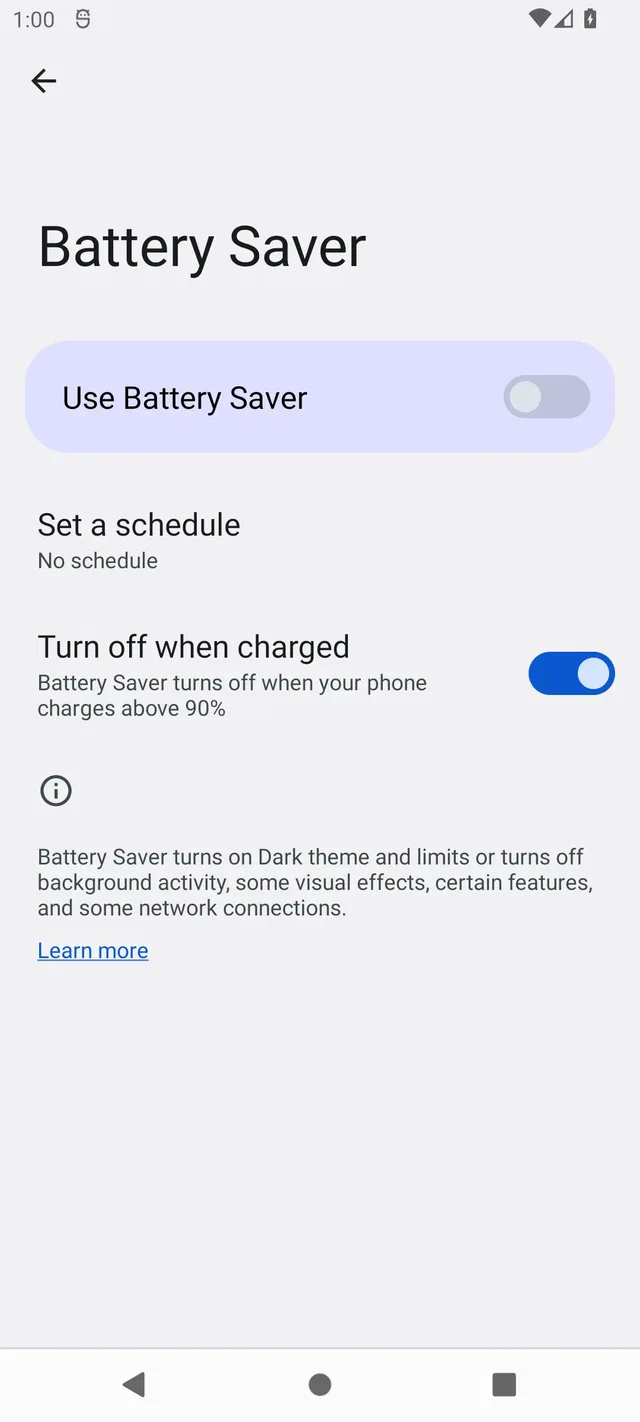
A12 introduced the Material You look — the big pill-shaped Use Battery Saver card, larger toggles, the colour-bordered battery glyph on the Adaptive preferences page. The flow is identical to A13: Battery Saver at the top of Settings → Battery, Adaptive Battery one level deeper under Adaptive preferences.
Battery Saver:
- Settings → Battery → Battery Saver
- Confirm Use Battery Saver is Off.
- Tap Set a schedule → No schedule.
Adaptive Battery:
- Settings → Battery → Adaptive preferences → Adaptive Battery
- Toggle Adaptive Battery to Off.
The Adaptive preferences screen on A12 is visually the same as the A13 one above — only the surrounding Material You chrome differs slightly. No new screenshot needed.
Android 10 and 11: Battery Manager on its own page
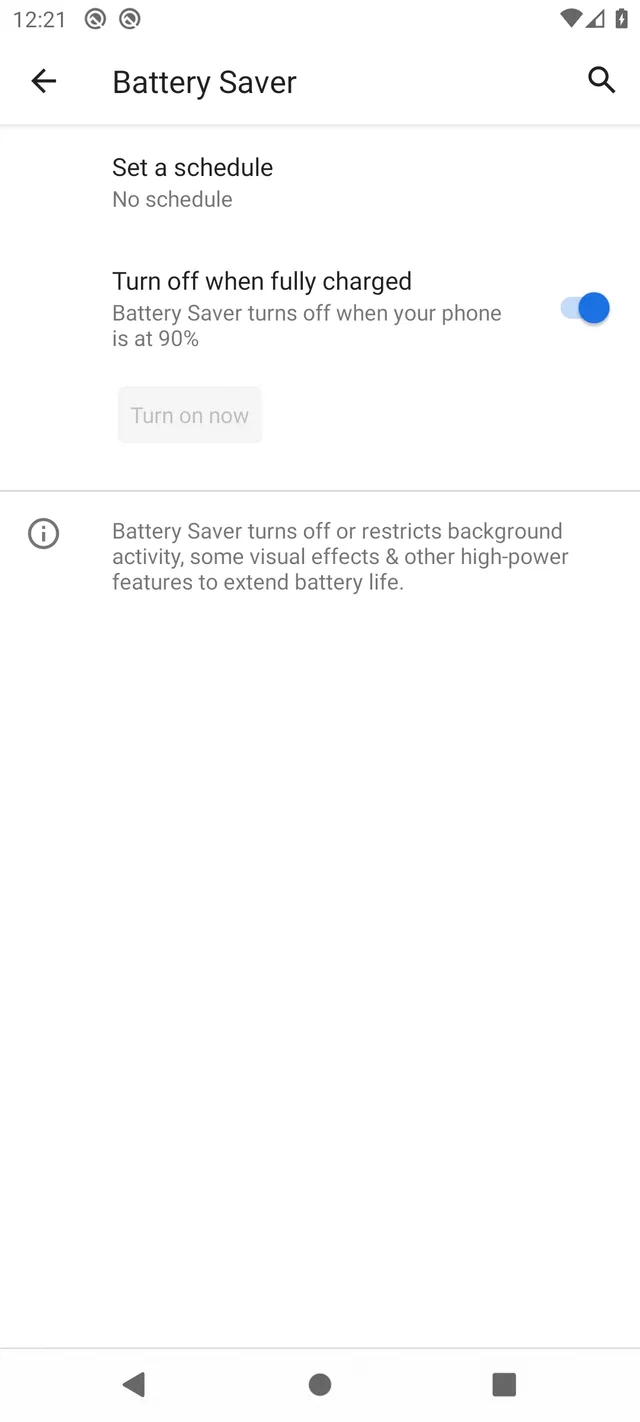
A10 and A11 share the same battery UI. The Adaptive-Battery feature is called Battery Manager and lives on its own page reached from the Battery main screen. The Battery Saver page is a separate top-level entry on Settings → Battery.
Battery Saver — disable, then clear the schedule:
- Settings → Battery → Battery Saver
- Confirm Use Battery Saver is Off.
- Tap Set a schedule → No schedule.
- Leave Turn off when fully charged alone — it only matters if Battery Saver is on.
Battery Manager — disable:
- Settings → Battery → Battery Manager
- Toggle Manage apps automatically to Off.
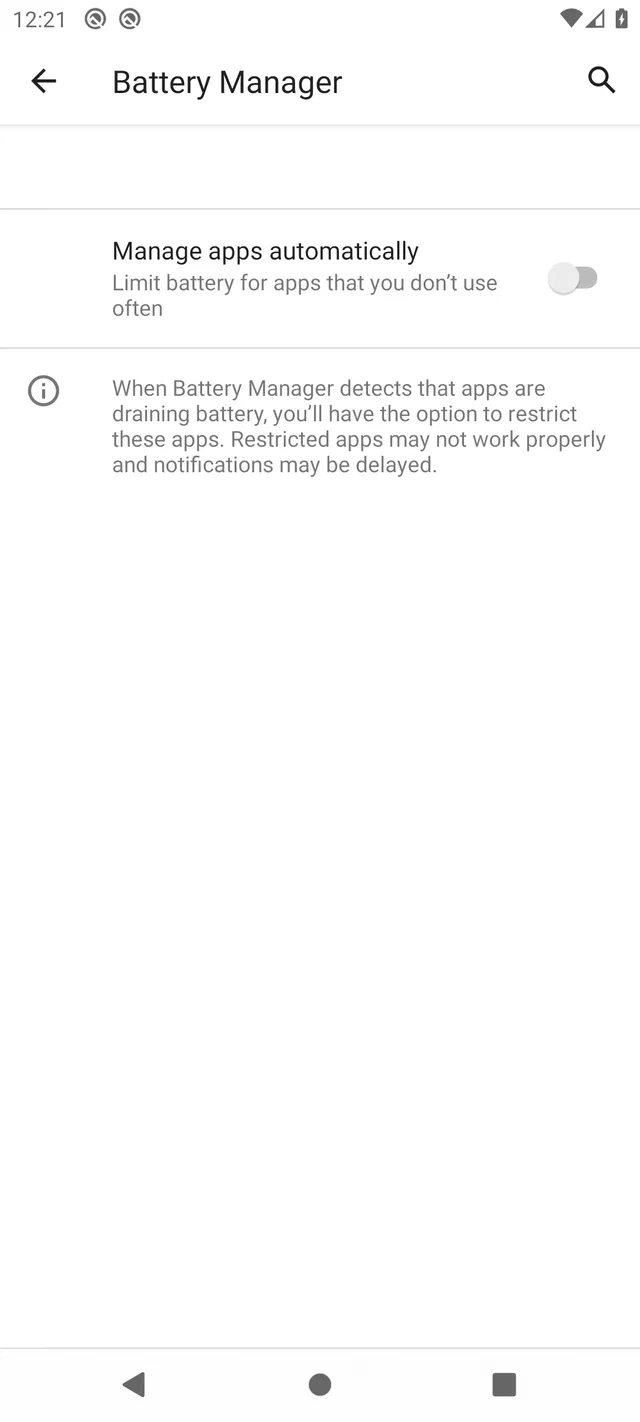
Android 11 has no relevant change here — the same two screens, the same toggle labels.
Android 9: simplest Battery Saver, distinct Battery Manager
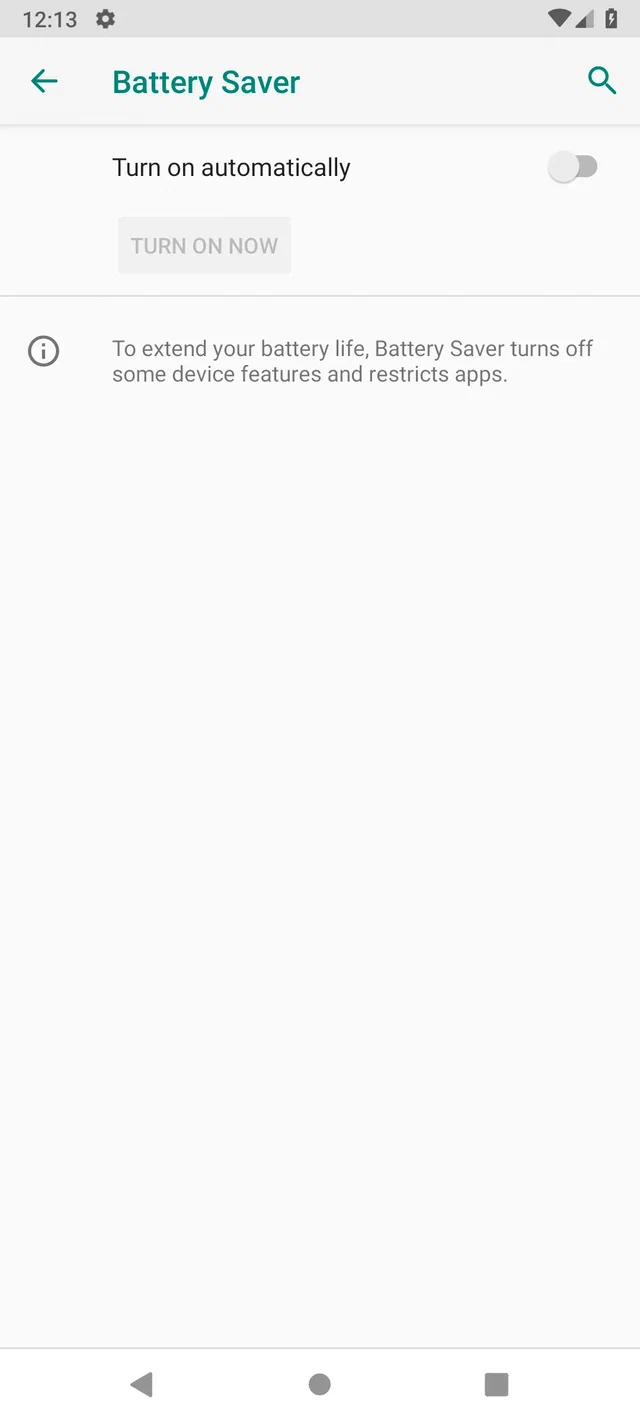
Android 9 is the odd one out: its Battery Saver page has no schedule sub-screen at all, and the Battery Manager toggle label is different from A10/A11.
Battery Saver — single toggle, no schedule screen:
- Settings → Battery → Battery Saver
- Confirm Turn on automatically is Off. (That’s the only control on this page besides the TURN ON NOW button.)
Battery Manager — same screen as A10/A11, only the label differs:
- Settings → Battery → Battery Manager
- Toggle Use Battery Manager to Off.
The screen layout is identical to the A10/A11 Battery Manager page above — only the toggle label changed: A9 says “Use Battery Manager / Detect when apps drain battery”, while A10/A11 renamed it to “Manage apps automatically / Limit battery for apps that you don’t use often”. Same function, different wording.
80% charge limit (Pixel 8/9 and Samsung Galaxy)
The single highest-impact change you can make for long-term proxy phone health is to keep the battery between roughly 30% and 80% state of charge. Calendar aging at high SoC is the dominant failure mode for plugged-in phones — far worse than cycle count, far worse than heat from normal operation. Battery University’s BU-808 storage table estimates about 80% capacity remaining after one year at 25°C and 100% charge, versus 96% at 40% charge; at 40°C, the 100% case falls to 65%. The lithium-ion chemistry behind this — high-SoC electrolyte oxidation and cathode stress — is the reason every battery-aware OEM is moving toward charge optimization; this guide turns the operator-facing knobs.
The two broadly documented, fleet-friendly built-in 80% charge cap paths in 2026 are Google Pixel 6a and later and Samsung One UI 6.1+ on supported Galaxy models. Google’s Pixel battery help documents “Limit to 80%” for Pixel 6a and later; Samsung’s One UI 6.1 Battery protection page documents Maximum mode stopping charge at 80%. Both work the same way from the operator’s point of view — once the battery hits 80%, the phone stops normal charging — but the menu paths are different. If you’re still picking hardware for a new fleet, check our recommended Android devices for iProxy — Pixel 8 and 9 specifically get a nod precisely because of this feature.
Pixel 8/9 (and Pixel 6a, 7, 7a, 8a)
- Settings → Battery → Battery health → Charging optimization
- Toggle Use charging optimization on.
- Pick Limit to 80% rather than Adaptive Charging.
What you’ll see: a two-radio screen with Adaptive Charging on top and Limit to 80% below it. Adaptive Charging is for personal-phone users who plug in overnight; it’s wrong for a proxy node that’s always on mains. Pick Limit to 80%.
Recalibration caveat. Pixel firmware requires the battery to fully charge once every 10 cycles to keep the SoC reading accurate. With the 80% cap active and the phone always plugged in, you may go many weeks without a full charge — the capacity reading drifts and the percentage shown on screen gradually disconnects from actual energy stored. This is cosmetic for a node you’re not relying on the battery to power, but if you ever need to fail over to battery during a power blip, leave the cap off and let the phone hit 100% for one full charge cycle every 2–3 months.
Samsung Galaxy (One UI 6.1 and later)
- Settings → Battery → Battery protection
- Turn the master toggle on.
- Pick Maximum.
Samsung exposes three modes — Basic (stops at 100% then idles), Adaptive (alternates between Maximum overnight and Basic during the day), Maximum (stops at 80%). For a proxy node the choice is Maximum. Adaptive’s overnight/daytime logic is wrong for a phone that has no “day” or “night”.
Supported on One UI 6.1+ Galaxy S, Z Flip, Z Fold, and the 2024+ Galaxy A series. Older A-series and pre-S22 models don’t have it.
Smart plug + ADB script: universal cap
Most other OEMs do not ship a fixed, fleet-reliable built-in cap in 2026:
- Xiaomi (HyperOS 1.x / MIUI 14) — model- and region-specific behavior; no fixed 80% cap you can count on across a fleet without root. Magisk modules and kernel patches exist but require root and void the warranty.
- OPPO / Realme (ColorOS 14) — has “Smart Charging” that mimics adaptive overnight behavior, but most models do not expose a fixed 80% cap.
- Motorola / ASUS / Huawei / Honor — verify per model. If the Battery screen has no fixed limit, use the smart-plug path below.
- Sony Xperia — Battery Care can help on supported models, but it is not a universal fleet path and should not be treated like Pixel’s fixed Limit to 80% control.
The universal answer is a network-controlled smart plug that cuts mains when the phone hits 80% and restores it below 30%. It also makes sense on Pixel and Samsung fleets where you want the cap decoupled from OEM firmware — a One UI 6.0 → 6.1 update has been observed to silently revert Battery protection, but no firmware update touches a Shelly relay. Once it’s in place, the OEM software cap becomes a nice-to-have, not a load-bearing setting.
What you need:
- A smart plug flashed with Tasmota or ESPHome — Shelly Plug S, Sonoff S31, or a generic ESP8266 relay (~$8–15 per outlet). Avoid cloud-only Tuya / stock Sonoff bricks; you want LAN MQTT or HTTP control.
- A controller — Home Assistant, a Raspberry Pi running a Python loop, or any always-on host with
adband an MQTT/HTTP client installed. - ADB over Wi-Fi enabled on each phone (Settings → System → Developer options → Wireless debugging), paired to the controller.
The loop, one per phone, polled every 5–10 minutes:
level=$(adb -s "$DEVICE" shell dumpsys battery | awk '/level:/ {print $2}')
[ "$level" -ge 80 ] && plug_off "$DEVICE"
[ "$level" -le 30 ] && plug_on  "$DEVICE"
Tradeoffs vs. an OEM software cap:
- More cycling, less calendar aging. The phone discharges 80 → 30 instead of holding near 80, so cycle count goes up — but high-SoC calendar aging, the dominant failure mode on plugged-in nodes, goes down. Net win for 24/7 operation.
- Firmware-update-proof. Major OEM upgrades have been observed to reset Battery protection and Adaptive Battery; a relay-based cap is immune.
- Setup cost. ~30 minutes per phone after the first one. Hardware ~$10–15 per outlet plus a controller that’s likely already in the rack.
- USB-PD nuance. Cheap PD bricks and a few phones (notably Pixel 6/7 on early firmware) can hang in negotiation if the relay cycles power too quickly. Allow ~3 seconds between off → on transitions.
On a fleet large enough that one OEM update can cost half a day of re-verification across every device, the smart-plug path pays for itself the first time a vendor silently reverts your setting.
Verify it stuck
After all four settings (Battery Saver off, Adaptive Battery off, 80% cap on, plus the per-app Unrestricted from the companion guide ) are configured:
- Reboot the phone. Most settings here survive reboots, but Adaptive Battery and OEM-skin battery saver have both been observed to silently re-enable on some firmware (Xiaomi HyperOS, Samsung One UI 6.0 → 6.1 upgrade path).
- Re-open each screen and confirm the state.
- Force a one-week burn-in. Leave the phone plugged in and the proxy running for seven days, untouched. Then re-check Adaptive Battery — if it’s flipped itself back on, the OEM skin overrides the user-set state, and you need to layer the OEM-specific protections (Xiaomi autostart, Samsung One UI Sleeping apps, Huawei protected apps) on top.
- Major OEM updates revert these settings. Verify after every OTA. On a fleet, schedule a re-check job for the day after any vendor monthly security update.
Cheat sheet
| Setting | A9 | A10–A11 | A12–A14 | A15 | A16 |
|---|---|---|---|---|---|
| Battery Saver Off | Battery → Battery Saver → “Turn on automatically” Off | Battery → Battery Saver → Use Battery Saver Off | Same as A10–A11 | Battery → Battery Saver → Use Battery Saver Off (combined screen) | Same as A15 |
| Schedule = Never | (no schedule screen on A9) | Set a schedule → No schedule | Set a schedule → No schedule | Inline on same page | Inline on same page |
| Adaptive Battery / Battery Manager Off | Battery → Battery Manager → “Use Battery Manager” Off | Battery → Battery Manager → “Manage apps automatically” Off | Battery → Adaptive preferences → Adaptive Battery → Off | Inline on Battery Saver page | Battery → Battery Saver → tap Adaptive Battery row → Off (same destination as A13) |
OEM-specific (orthogonal to Android version): Pixel 8/9 — Battery → Battery health → Charging optimization → Limit to 80%. Samsung One UI 6.1+ — Battery → Battery protection → Maximum.
Print this and tape it to the rack alongside the per-app cheat sheet from the companion guide .
Why these features hurt 24/7 proxy uptime
Battery Saver is Android’s emergency mode. When active, it caps background CPU, defers Firebase pushes, freezes location services, throttles network calls, and on A12+ dims the display and forces dark theme. On a 24/7 proxy phone that lives on mains power, none of this should ever activate — but the schedule can trip it anyway. By default Android offers to flip Battery Saver on at 10% or 20% remaining, and if the phone disconnects from the charger for any reason (cable nudge, power outage, charger plug loose) it will hit that threshold within hours. Several OEM skins also ship a pre-armed schedule — Xiaomi MIUI has been observed defaulting to “When charge falls below 20%” on HyperOS 1.x. The fix is to leave Battery Saver off and explicitly set its schedule to Never.
Adaptive Battery (called Battery Manager on A9–A11) is a learned model that ranks every installed app into one of five App Standby Buckets — active, working_set, frequent, rare, restricted — based on how recently and predictably the user opens it. Apps in the lower buckets get fewer JobScheduler quota slots, longer Doze deferrals, and on A13+ can have their BOOT_COMPLETED broadcast silently suppressed. A proxy app sitting on an unattended phone never gets opened by a user. After about a week, Adaptive Battery moves it into rare or restricted. From there the OS limits its network access, throttles its alarms, and on A14+ may demote the foreground service entirely. The symptom on the operator side is “uptime degraded after a week”, and the cause is almost never the proxy app itself — it’s the OS quietly deciding the app no longer matters. With Adaptive Battery off, all apps default to the working_set bucket and stay there.
Why not just whitelist iProxy and OpenVPN and leave Adaptive Battery on? Because the bucket system applies to all installed apps, including system services that the OS uses to keep network connectivity, time sync, and watchdog timers alive. If those get demoted, the proxy app’s environment degrades around it even when the app itself is on Unrestricted. The cheapest setting on a plugged-in node is to let every app live in
working_set.
What this fixes, what it doesn’t
Fixes:
- Doze and App Standby demotions of every app on the phone, not just iProxy and OpenVPN.
- Background sync, alarm, and JobScheduler throttling tied to bucket assignment.
- Auto-arming Battery Saver on a transient power drop.
- Long-term battery chemistry damage from sitting at 100% SoC on plugged-in nodes (Pixel + Samsung only). For the full chemistry-and-operations picture — the 80% knee, SEI growth, calendar aging at high SoC, and why the 79→80% micro-cycle is gentle while the 99→100% one is not — see the pillar: mobile proxy phone battery longevity .
Does not fix:
- OEM-specific kill mechanisms. Xiaomi autostart, MIUI/HyperOS battery saver, Samsung One UI Sleeping/Deep Sleep apps, Huawei EMUI protected app status, Realme/Oppo ColorOS keep-alive — these are vendor screens layered on top of stock Android. The community-maintained dontkillmyapp.com tracks the worst offenders.
- Per-app Unrestricted for iProxy and OpenVPN. Covered in the companion guide — required in addition to the settings here.
- Wi-Fi sleep policy. Some phones disconnect Wi-Fi when the screen is off. Settings → Wi-Fi → Advanced → Keep Wi-Fi on during sleep → Always.
- Charge cap on non-Pixel-non-Samsung phones. For Xiaomi, OPPO, and others, the workaround is hardware: a smart plug with a 30%/80% cycle script.
- Heat. Stacked, poorly ventilated phones run hot, and heat damages cells faster than any software toggle can compensate for. Airflow matters; see the fleet hygiene section of the 4G proxy network setup guide .
This guide covers four settings. Together with per-app Unrestricted from the companion guide and the operator hygiene checklist in connection settings for stable proxy operation , it accounts for everything Android’s user-facing battery menus expose to a proxy operator in 2026. The chemistry of why these settings exist — and why the resulting 80% cap and 20–80% cycle actually extend the cell’s life by 2–3× — is covered in the cluster pillar: mobile proxy phone battery longevity .