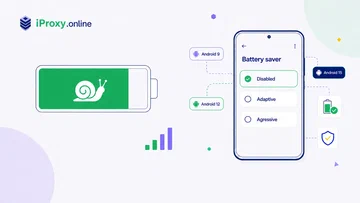
Key Takeaway: To disable battery optimization on Android for an iProxy node, mark both the iProxy app and OpenVPN for Android as Unrestricted (Android 12+) or Don’t optimize (Android 9–11) in the OS battery settings. The exact menu path differs across Android versions; this guide covers the per-version flow for 9 through 16.
What you’ll do
Mark two apps as Unrestricted (or Don’t optimize, on older Android) in the OS-level battery settings of every phone in your Android proxy fleet :
- iProxy —
com.iproxy.android - OpenVPN for Android —
de.blinkt.openvpn(the open-source ics-openvpn client)
Without this, Android treats both apps as ordinary background processes and applies progressively harsher restrictions: Doze deferral, App Standby Bucket demotion, foreground-service throttling, and eventually killing the persistent notification on aggressive OEM skins. The symptom is silent disconnects, dead SIM banks, and dropped tunnels that look like proxy bugs but are actually OS battery management doing what it was designed to do.
The fix is per-app, per-phone, one-time. About two minutes per device once you know where the screen lives. If you operate a proxy farm at any scale, doing this on day one of provisioning is far cheaper than chasing flaky uptime later. See connection settings for stable proxy operation for the full operator hygiene checklist.
Jump to your version
⚠️ Do this for both apps, iProxy AND OpenVPN, or it’s pointless. Why?
| Version | Section |
|---|---|
| Android 16 | Android 16: same hidden submenu as Android 15 |
| Android 15 | Android 15: the hidden submenu trap |
| Android 14 | Android 13–14: clean radio screen |
| Android 13 | Android 13–14: clean radio screen |
| Android 12 | Android 12: clean radios with earlier title |
| Android 11 | Android 9–11: the split-UI era |
| Android 10 | Android 9–11: the split-UI era |
| Android 9 | Android 9–11: the split-UI era |
The screen has been redesigned three times across this range, so the steps differ. Find your version, follow the three steps, repeat for OpenVPN.
Note on phone choice: the Android version is mostly outside your control on a phone already in service, but if you’re still picking devices, our list of recommended Android phones for iProxy flags models that get long OS support and have predictable battery menus. The recommended devices page on iProxy.online tracks current availability.
Android 16: same hidden submenu as Android 15
Android 16 keeps the Android 15 per-app battery UI for this setting. The top page still shows the Allow background usage row and the Restricted radio, while Unrestricted lives one screen deeper.
How:
- Settings → Apps → All apps → iProxy → App battery usage
- Tap the row label “Allow background usage” — not the toggle on its right side.
- On the sub-screen that opens, pick Unrestricted. Back out.
Repeat for OpenVPN for Android. The tap target and final sub-screen match the Android 15 screenshots below.
Android 15: the hidden submenu trap
Android 15 introduced the hidden submenu trap, and Android 16 keeps it. The top page shows an Allow background usage toggle and a Restricted radio. Most operators glance at the toggle, see it’s already on, and back out. That state is “Optimized”, not “Unrestricted”. Unrestricted is hidden one screen deeper.
How:
-
Settings → Apps → All apps → iProxy → App battery usage
-
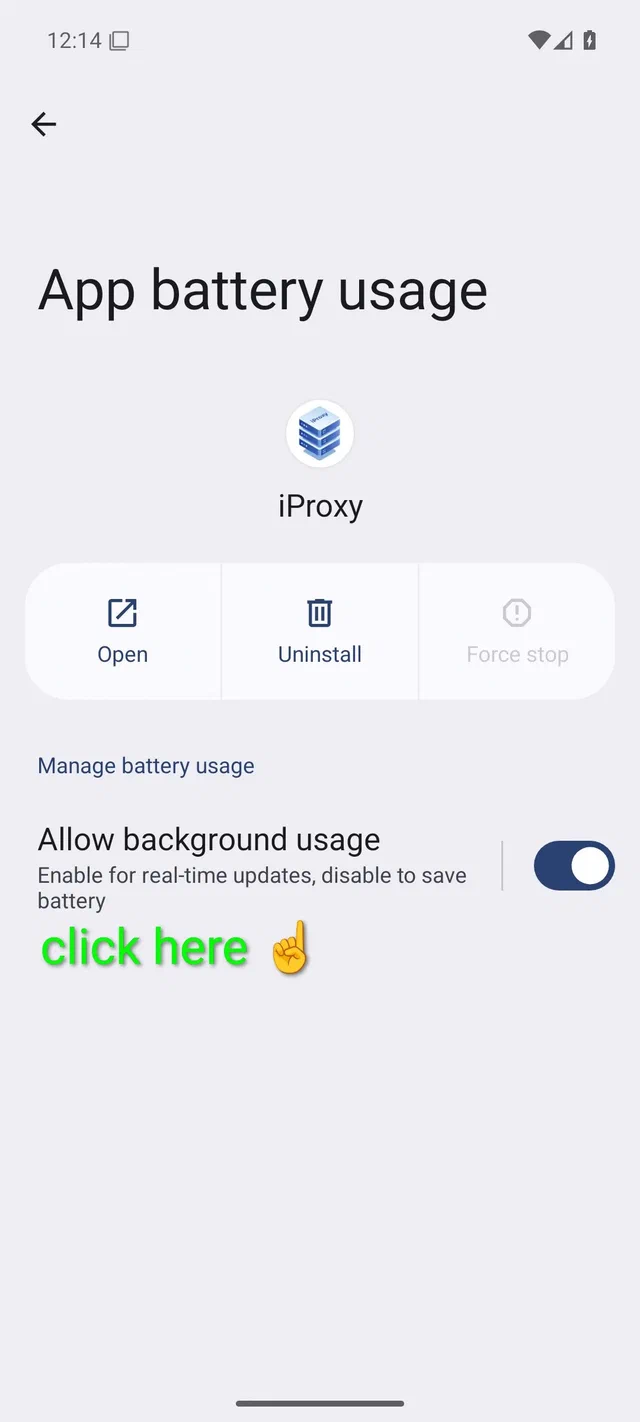
Tap the row label “Allow background usage” — not the toggle on its right side. Tapping the toggle just flips between Restricted and not-Restricted; it never reaches Unrestricted. The whole row is the tap target:
-
On the sub-screen that opens, pick Unrestricted. Back out:
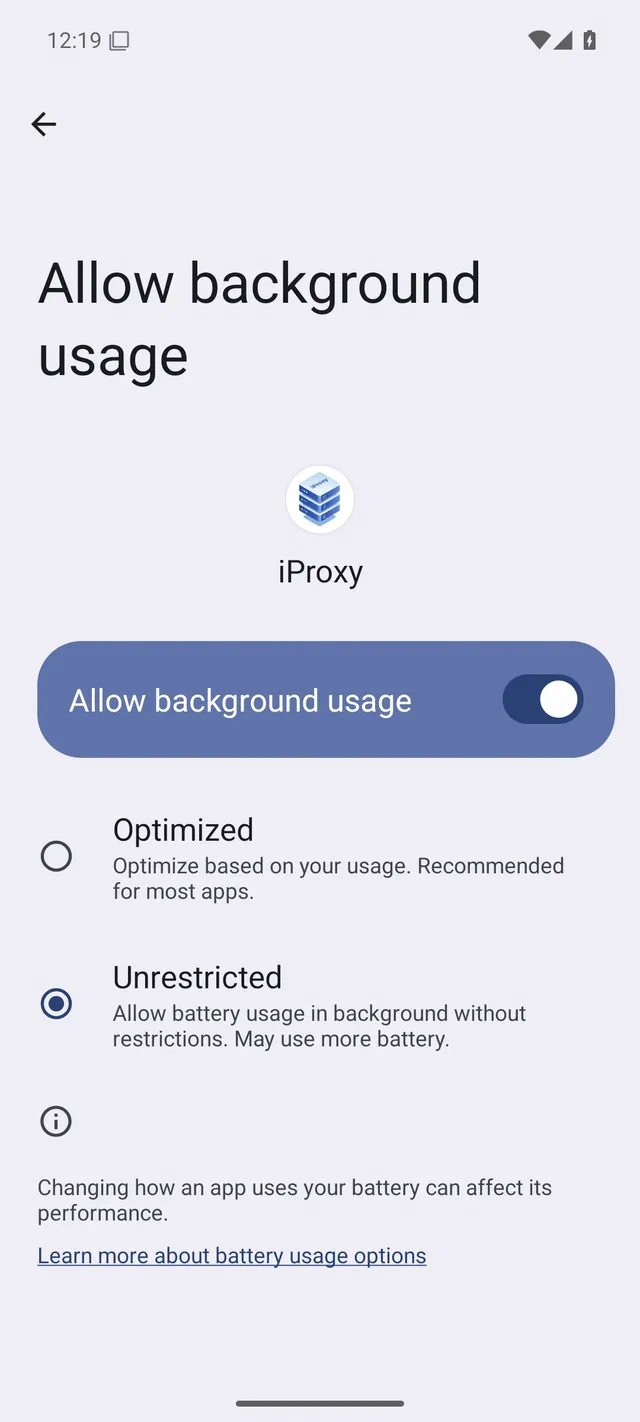
The trap, in one line: if the screen you’re on shows a toggle and one radio, you’re on the top page and the app is on Optimized. If you see two radios (Unrestricted / Optimized), you’re on the right page.
Repeat for OpenVPN for Android.
Why Android 15 buried it
Google’s stated rationale is that most consumer apps don’t need Unrestricted, so the option was moved one level deeper to discourage casual whitelisting. For an unattended 24/7 proxy node that is exactly the use case the OS is trying to discourage, so the extra tap is unavoidable.
Android 13–14: clean radio screen
The cleanest screen in the supported range. Three radios on one page, one tap.
How:
- Settings → Apps → All apps → iProxy → App battery usage
- Pick Unrestricted.
- Back out.

Repeat for OpenVPN for Android.
(Android 14 uses the exact same screen and wording.)
Android 12: clean radios with earlier title
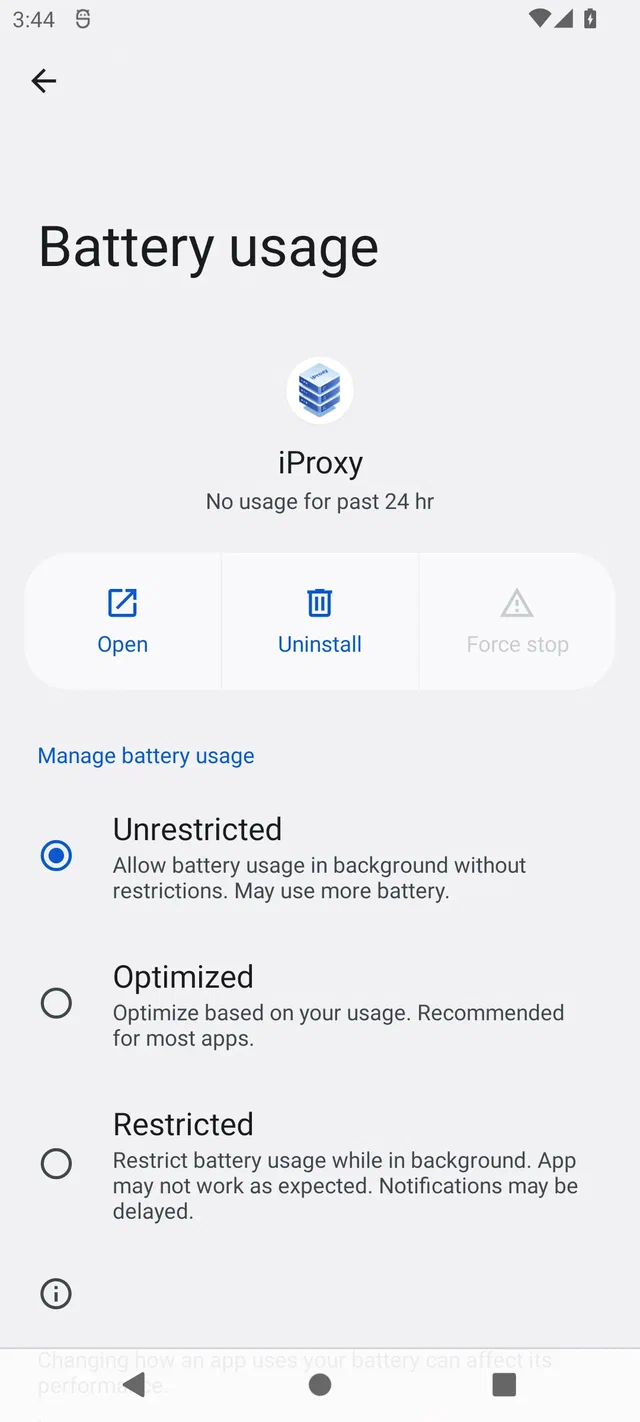
Same three-radio layout as Android 13, with one cosmetic difference: the row inside App info is labeled Battery rather than App battery usage, and the page title says Battery.
How:
- Settings → Apps → All apps → iProxy → Battery
- Pick Unrestricted.
- Back out.
Repeat for OpenVPN.
Android 9–11: the split-UI era
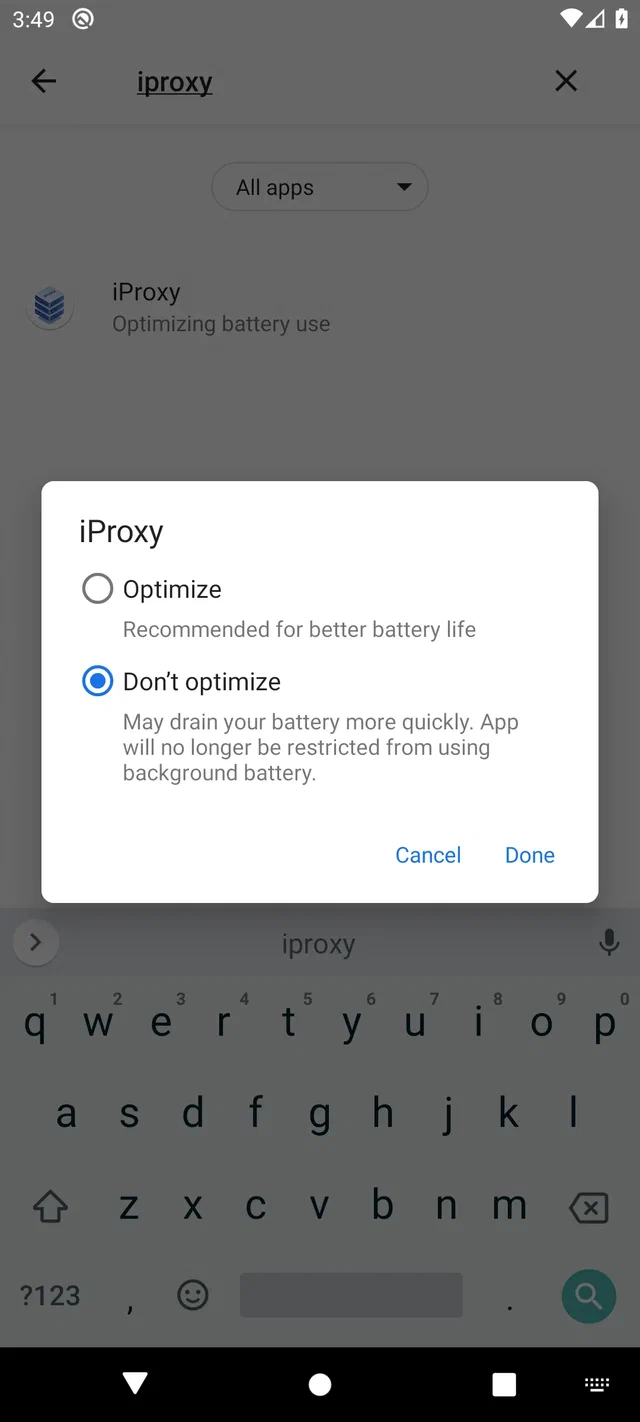
On Android 9, 10, and 11 the per-app battery screen is split: there’s a Background restriction toggle (leave OFF) plus a Battery optimization sub-screen with a list of every installed app and an Optimize / Don’t optimize dialog. The dialog is where the actual setting lives.
How:
-
Settings → Apps & notifications → See all apps → iProxy → Advanced → Battery → Battery optimization
-
The list defaults to “Not optimized”. Tap the spinner at the top of the list and switch to All apps. Then find iProxy:
- Android 11 / 10: tap the magnifier icon, type
iproxy, pick the row. - Android 9: no search button. The list is alphabetical, so scroll to
iand tap iProxy.
- Android 11 / 10: tap the magnifier icon, type
-
In the dialog that opens, pick Don’t optimize and confirm with Done:
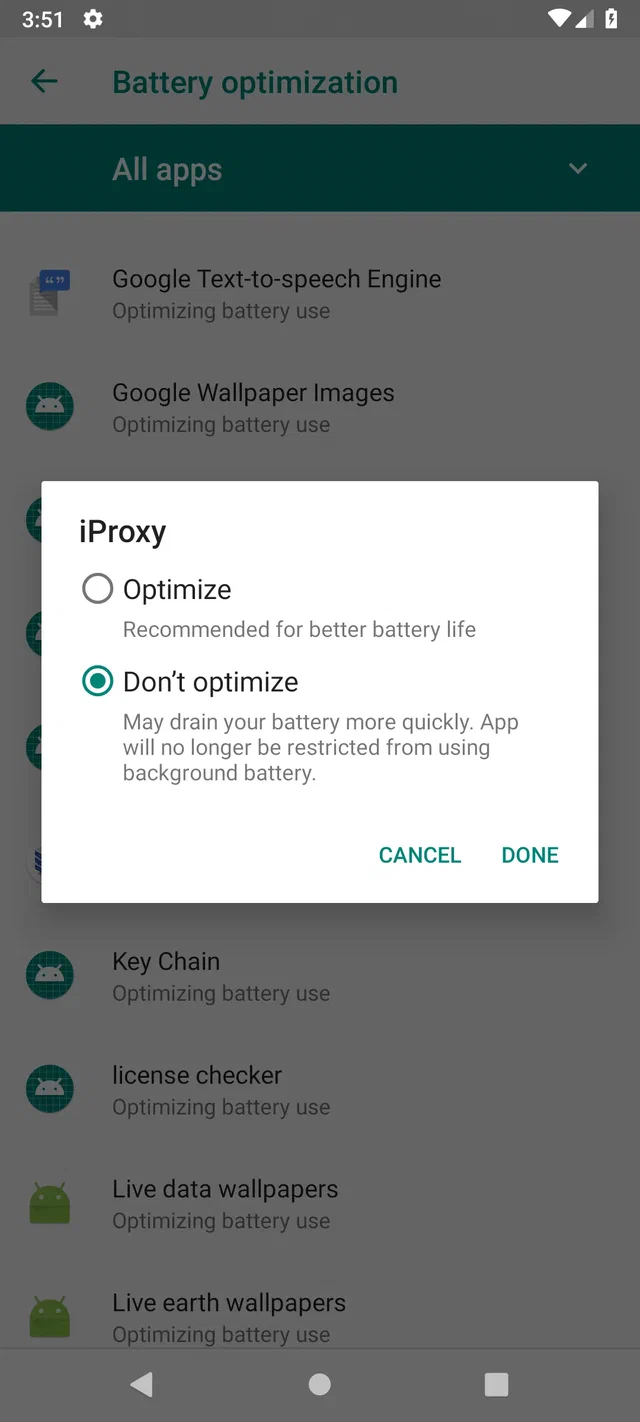
On Android 9 the dialog looks identical:
Repeat for OpenVPN for Android.
A9 gotcha: the Battery optimization list scrolls fast and overshoots easily on a touchscreen. If the dialog opens for the wrong app, tap CANCEL and scroll back. There is no search shortcut on this version.
Verify it stuck
After both apps are set:
- Reboot the phone.
- Re-open the per-app battery screen for both iProxy and OpenVPN.
- Confirm the choice is still Unrestricted (Android 12+) or Don’t optimize (Android 9–11).
The setting normally survives reboots and routine app updates. Two situations where it can revert:
- Major OEM skin updates. Xiaomi MIUI/HyperOS and Samsung OneUI have both been observed to reset per-app battery exemptions on system updates. After every OTA, re-check both apps.
- The app was force-stopped through Settings. On Android 15+, Android’s stopped-state behavior keeps the app stopped until direct or indirect user action and cancels pending intents while it is stopped. Don’t tap Force stop on a production phone; if it has been tapped, launch the app again, then re-check that Unrestricted is still selected.
If the setting reverts on a stock-Android skin (Pixel, recent Motorola, Sony) without a force-stop and without a major OS update, that’s worth investigating: it isn’t expected stock behavior.
What this fixes, what it doesn’t
Fixes:
- Doze deferral of network and CPU work for both apps when the phone is idle.
- App Standby Bucket demotion into
rareorrestricted, which throttles jobs, alarms, and (inrestricted) network access. - Per-app Battery Saver throttling when global Battery Saver is active.
- Foreground-service restrictions tied to bucket state, including the Android 13 BOOT_COMPLETED suppression for apps the user has placed in restricted background usage.
Does not fix:
- OEM-specific kill mechanisms. Xiaomi autostart, MIUI/HyperOS battery saver, Samsung OneUI Sleeping/Deep Sleep apps, Huawei EMUI protected app status, Realme/Oppo ColorOS keep-alive. Those are separate per-vendor screens, layered on top of stock Android battery management. Even with both apps on Unrestricted, an OEM skin can still kill them. The community-maintained dontkillmyapp.com tracks the worst offenders and the per-OEM mitigations, and our 4G proxy network setup guide walks through the broader fleet hygiene that keeps OEM-skin pain to a minimum.
- Global Battery Saver mode. This guide adjusts per-app behavior. Battery Saver, when active globally, can override the per-app exemption on most phones. For plugged-in proxy nodes, disable global Battery Saver entirely. It should never trigger anyway, since the phone is on mains power.
- Wi-Fi sleep policy. Some phones disconnect Wi-Fi when the screen is off. The proxy then has no link. Settings → Wi-Fi → Advanced → Keep Wi-Fi on during sleep → Always.
- Battery longevity itself. The OS settings here keep the apps alive; they don’t slow down battery cell aging on a plugged-in 24/7 phone. The chemistry side, including the 80% state-of-charge knee, calendar aging at high SoC, and smart-plug cycled charging, is a separate topic, covered in our mobile proxy phone battery longevity guide — the pillar article this guide sits under.
Cheat sheet
Print or screenshot this and tape it to the rack:
| Android | Path | Final action |
|---|---|---|
| 16 | Apps → iProxy → App battery usage → tap row label | Pick Unrestricted in the sub-screen |
| 15 | Apps → iProxy → App battery usage → tap row label | Pick Unrestricted in the sub-screen |
| 14 | Apps → iProxy → App battery usage | Pick Unrestricted |
| 13 | Apps → iProxy → App battery usage | Pick Unrestricted |
| 12 | Apps → iProxy → Battery | Pick Unrestricted |
| 11 | Apps & notifications → iProxy → Advanced → Battery → Battery optimization | Spinner → All apps → search → iProxy → Don’t optimize |
| 10 | Apps & notifications → iProxy → Advanced → Battery → Battery optimization | Spinner → All apps → search → iProxy → Don’t optimize |
| 9 | Apps & notifications → iProxy → Advanced → Battery → Battery optimization | Spinner → All apps → scroll to iProxy → Don’t optimize |
Why you have to do this for both apps
A typical iProxy node sits behind an OpenVPN tunnel. The data path is:
mobile network ↔ Android OS ↔ OpenVPN tunnel ↔ iProxy daemon ↔ remote client
Both processes have to stay alive 24/7 for the proxy to be reachable. Android’s battery management treats each one independently. Setting iProxy to Unrestricted while leaving OpenVPN on Optimized achieves nothing — after a few days of no user interaction, the OS will demote the tunnel into the restricted standby bucket, throttle its alarms, and eventually kill its foreground service. iProxy stays running but has nothing to forward traffic over.
This is the most common cause of “iProxy uptime degraded after a week” support tickets that turn out not to be iProxy bugs at all. The proxy app is fine. The tunnel underneath isn’t.