
Let’s take a closer look at the antidetect browser Dolphin{anty} . It is widely used by affiliate marketing teams, as well as multi-account departments at Coinlist, Huobi, and similar organizations.
Features
Dolphin{anty} offers a large number of fingerprint substitution options: WebRTC, Canvas, WebGL, Client Rects, timezone, language, GEO, CPU, memory, screen, media, ports, and more.
There is a built-in Cookie Robot that automatically “warms up” cookies for you — no need to manually browse sites to build a realistic user history.
The browser passes Pixelscan, CreepJS, and other fingerprint scanners cleanly.
Dolphin{anty} is straightforward to use. Key capabilities include:
- tagging accounts with labels
- adding browser extensions to all profiles at once via a store link — for example, installing a translator across hundreds of profiles in just a few clicks
- assigning statuses to profiles, making it easy to see which accounts are farming, active, or banned
- adding notes to profiles — useful for storing login credentials, passwords, dates of birth, and similar information
- saving an unlimited number of proxies
- triggering IP rotation on a mobile proxy directly from the antidetect browser interface
- duplicating profiles with fingerprint randomization — create a copy of any existing profile with a unique fingerprint in a few clicks
- configuring startup pages so the required tabs open automatically when launching a profile
Dolphin{anty} pricing is slightly below market average, and after the trial period, 10 profiles remain available for free.
How to Configure a Proxy in Dolphin{anty}
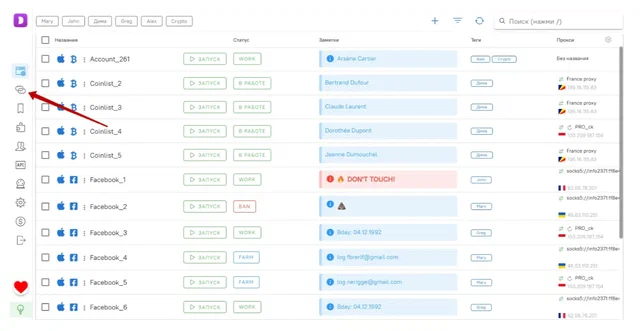
Click the proxy icon in the sidebar:
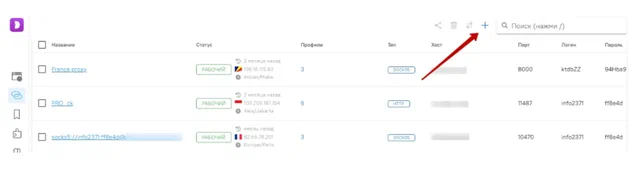
Then click the plus icon in the top-right corner:
In the window that opens, paste your proxy credentials into the field on the right. To add multiple proxies at once, enter them one per line. When ready, click “Add”:
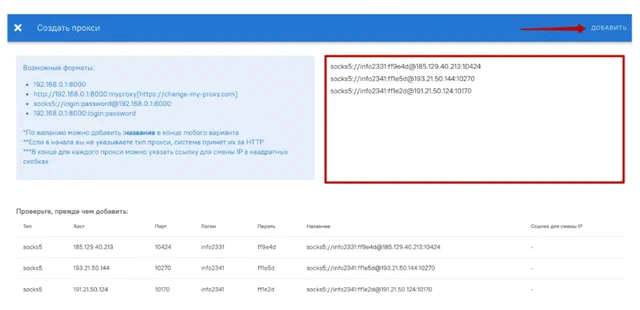
If you are using mobile proxies, append the IP rotation link after each proxy entry in square brackets. Your mobile proxy entry should look like this: socks5://info2331:[email protected]:10424[https://iproxy.online/api-rt/changeip/PfMlxTEqDd/x6R35PPATHP92HMYFT52G].
To verify that all proxies are working correctly, check the boxes to the left of the added proxies and click the button to test the connection:
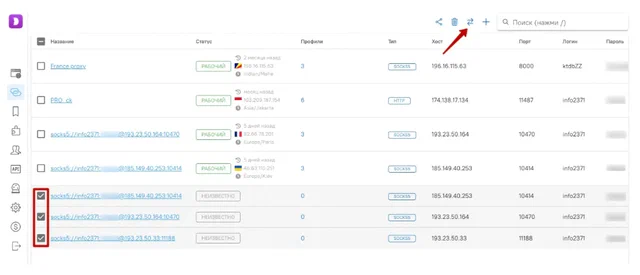
Working proxies will display a “Working” status.
To rotate the IP on a mobile proxy, simply click this icon on the main profiles screen:
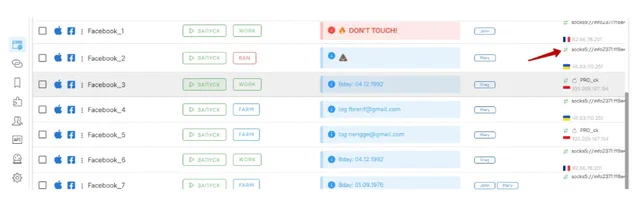
That completes the proxy setup. You can now add and save an unlimited number of proxies and use them across as many accounts as you need.
How to work with a mobile proxy across unlimited Facebook accounts: