Key Takeaway: To keep iProxy and OpenVPN for Android running on battery, give both apps the least restricted battery option on your phone: Unrestricted on Samsung and Motorola, No restrictions on Xiaomi, Allow background activity on OPPO and OnePlus. Samsung also needs both apps kept out of its sleeping-app lists, and Xiaomi also needs mobile data allowed in the background, autostart and a lock in Recent apps. The table below takes you to your brand and Android version.
What you will change
Your phone can decide on its own that iProxy or OpenVPN has been using too much battery, and stop it. The proxy then goes offline while the phone looks fine. Android has its own rules for this, and each manufacturer adds more on top, with different screens and different names. This guide shows where those screens are on the brands behind most iProxy phones.
Two apps need the settings on every phone:
- iProxy (
com.iproxy.android) - OpenVPN for Android (
de.blinkt.openvpn)
Change the settings for both, because the proxy needs both running. Our guide to battery optimization on stock Android explains why one app is not enough.
This matters most on a phone that runs on battery or loses power from time to time. It takes a few minutes per phone. You do not need root or a computer.
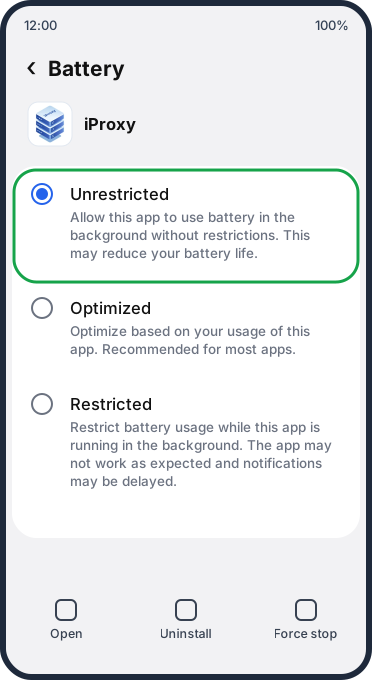
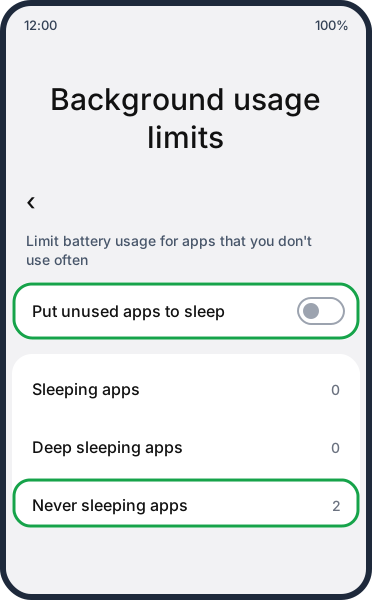
The screens below are illustrations of each brand’s settings, drawn with iProxy in place of the app name. Labels can differ slightly on your firmware, so look for the closest match. The green frame marks what to change.
Find your phone
Open Settings → About phone and note the Android version. On Samsung, tap Software information as well. Then go to your brand:
| Your phone | Android version | Go to |
|---|---|---|
| Samsung Galaxy | 13 and newer | One UI 5+ |
| Samsung Galaxy | 11 and 12 | One UI 3-4 |
| Samsung Galaxy | 10 and older | Older Samsung |
| Motorola | 15 and newer | Android 15+ |
| Motorola | 13 and 14 | Android 13-14 |
| Motorola | 12 and older | Android 12 and older |
| Xiaomi, Redmi, POCO | 13 and newer | HyperOS, MIUI |
| Xiaomi, Redmi, POCO | 12 and older | Older MIUI |
| OPPO, OnePlus, realme | Any | OPPO, OnePlus |
| Google Pixel, Nokia, TCL, Alcatel, REVVL, Orbic | Any | Close to stock |
| vivo, Huawei, Honor, other brands | Any | vivo and others |
When you finish your section, check that it worked before you move on to the next phone.
Samsung Galaxy
Samsung has two separate controls: the battery setting of each app, and its own lists of sleeping apps. Set both.
One UI 5 and newer (Android 13 and newer)
Set the app to Unrestricted:
- Open Settings → Apps → iProxy → Battery.
- Select Unrestricted.
- Repeat for OpenVPN for Android.
Keep the app out of the sleeping lists:
- Open Settings → Battery → Background usage limits. On some versions the path is Settings → Battery and device care → Battery → Background usage limits.
- Turn off Put unused apps to sleep.
- Open Sleeping apps and Deep sleeping apps. If iProxy or OpenVPN is listed, tap the three dots, then Edit apps, select the app and tap Remove.
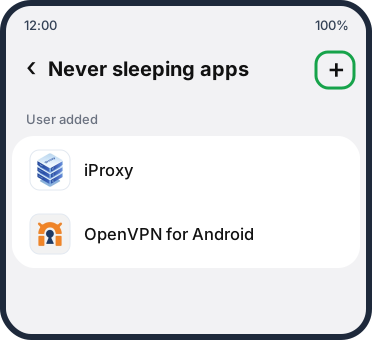
- Open Never sleeping apps, called Never auto-sleeping apps on some One UI 7 phones. Tap + and add both apps.
One UI 3 and 4 (Android 11 and 12)
-
Open Settings → Apps → iProxy → Battery (the screen may be called Use details).
-
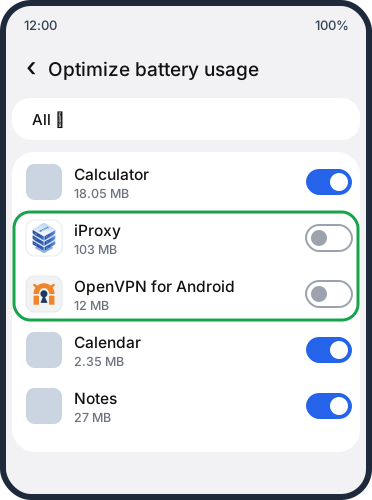
If you see Unrestricted, Optimized and Restricted (One UI 4), select Unrestricted, repeat steps 1 and 2 for OpenVPN for Android and go to step 3. Otherwise (One UI 3), tap Optimize battery usage, set the list at the top to All and turn the switch off next to iProxy and OpenVPN for Android. Off means not optimized.
-
Open Settings → Battery, or Settings → Battery and device care → Battery, then Background usage limits. Turn off Put unused apps to sleep. If either app is listed in Sleeping apps or Deep sleeping apps, tap the three dots there, then Edit apps, select the app and tap Remove.
-
Open Never sleeping apps, tap + and add both apps.
-
In the battery settings, open More battery settings and turn off Adaptive battery.
Older Samsung phones (Android 10 and older)
One UI 1 and 2 (Android 9 and 10):
- Open Settings → Apps → iProxy → Battery. Turn on Allow background activity, then open Optimize battery usage, set the list to All, and turn the switch off for the app. Repeat for OpenVPN for Android.
- Open Settings → Device care → Battery → App power management. On some phones, tap the three dots on the Battery screen, then Settings.
- Turn off Adaptive battery and Put unused apps to sleep.
- If either app is listed in Sleeping apps or Deep sleeping apps, open the three-dots menu on that screen and remove it.
- Open Apps that won’t be put to sleep and add both apps.
Android 7 and 8:
- Open Settings → Device maintenance → Battery.
- Scroll to the bottom and open Unmonitored apps.
- Tap the three dots and add both apps.
- If either app is listed under Sleeping apps, remove it.
Android 6 and older: open Settings → Applications, tap the three dots, then Special Access → Optimize battery usage, and make sure neither app is selected.
Motorola
Motorola settings follow stock Android closely, including the hidden step on Android 15.
Our guide to Android power-saving settings shows how to turn off Adaptive Battery as well.
Motorola on Android 15 and newer
-
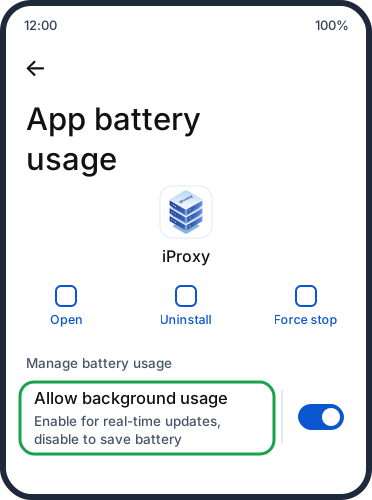
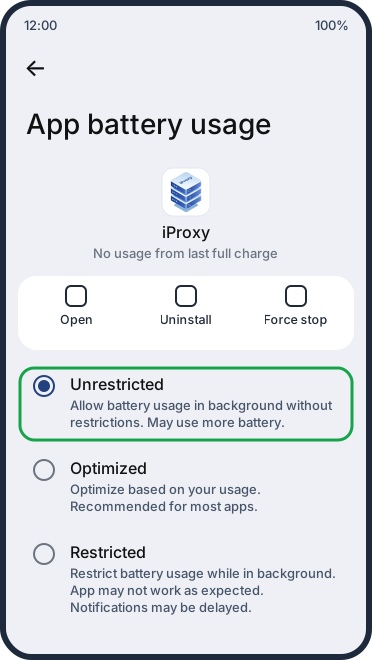
Open Settings → Apps → See all apps → iProxy → App battery usage.
-
Make sure the Allow background usage switch is on. Then tap the text of that row, not the switch on its right. The switch only turns background use on or off, and it never takes you to Unrestricted.
-
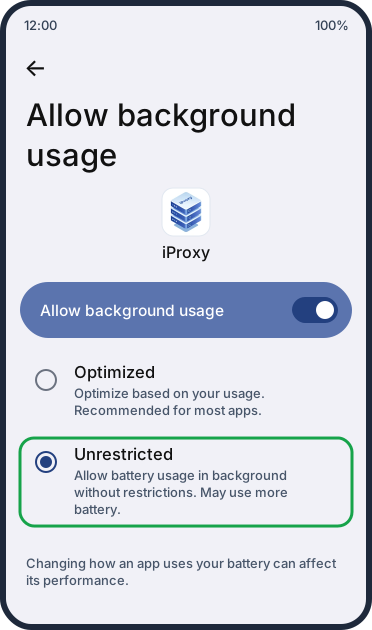
On the next screen, select Unrestricted.
-
Repeat for OpenVPN for Android.
If you see one switch and no Unrestricted option, you are still on the first screen.
Motorola on Android 13 and 14
- Open Settings → Apps → See all apps → iProxy → App battery usage.
- Select Unrestricted.
- Repeat for OpenVPN for Android.
Motorola on Android 12 and older
The menus match stock Android. Follow the Android 12 steps or the Android 9 to 11 steps in our stock Android guide. On Android 8, use the Android 8 steps further down this page.
Xiaomi, Redmi and POCO
Xiaomi has the most settings to change, and among the brands with the most phones on iProxy it is the one where we most often see the connection cut. In a one-week snapshot of our own monitoring, 22 to 29 October 2026, we looked at phones that spent enough time on battery to assess. We saw signs of the system cutting the connection on 37 of 177 Xiaomi phones, 16 of 1,788 Samsung phones and 1 of 619 Motorola phones.
Change every setting below. These settings are not a guarantee on every firmware. If a phone still drops after that, write to support with its model and Android version.
HyperOS and MIUI on Android 13 and newer
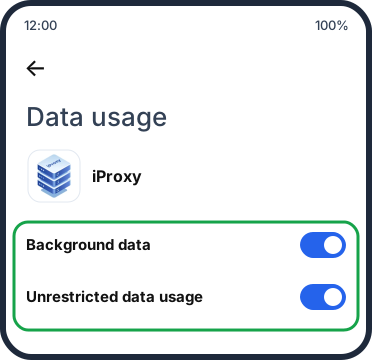
Start with mobile data in the background. In our support cases, battery settings alone are not always enough on Xiaomi phones: iProxy and OpenVPN can also lose mobile data in the background, and the proxy goes offline.
Mobile data in the background:
- Open Settings → Apps, tap Manage apps if your version shows it, and select iProxy.
- Tap Data usage.
- Turn on Background data and Unrestricted data usage.
- Repeat for OpenVPN for Android.
Battery saver:
- Open Settings → Apps, tap Manage apps if your version shows it, and select iProxy.
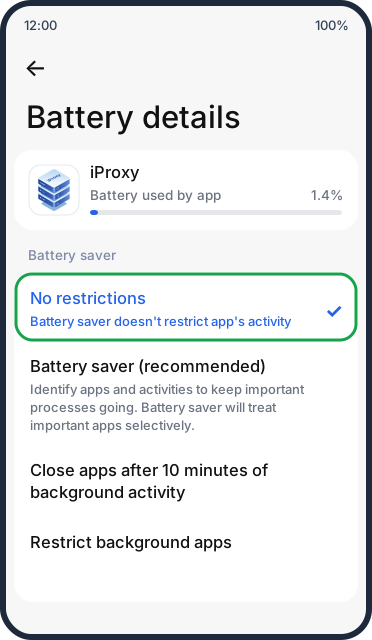
- Tap Battery saver. On some HyperOS versions the item is called Battery or Power.
- Select No restrictions. On some Android 13 phones the option is called Unrestricted.
- Repeat for OpenVPN for Android.
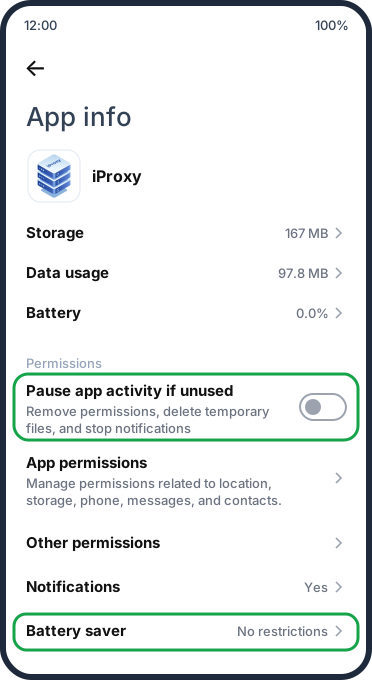
Pause app activity: on the same App info screen, turn off Pause app activity if unused. Do the same for OpenVPN for Android.
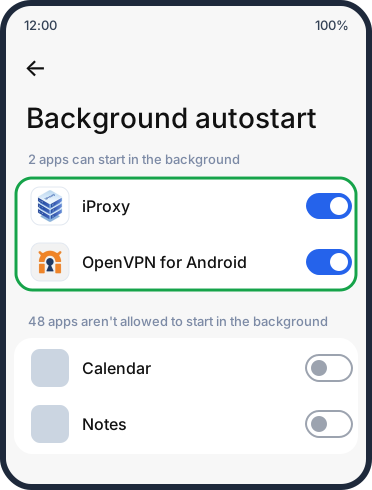
Background autostart:
- Go back to Settings → Apps and open Background autostart. It may be under Manage apps or Permissions. On some versions it is an Autostart switch on the app’s App info screen, and if it opens a menu, allow Secondary launch there too. If you find none of these, use the Security app: Permissions → Auto-start.
- Turn it on for iProxy and OpenVPN for Android.
Battery mode: open Settings → Battery and set the current mode to Balanced or a performance mode, not a power-saving one. On the same screen, open Additional settings, and if you see Adaptive battery, turn it off.
Lock the apps in Recent apps:
- Open iProxy, then open the Recent apps view.
- Press and hold the app card, then tap the padlock. A small lock appears on the card.
- Repeat for OpenVPN for Android.
On MIUI 14 you can also add both apps in the Security app: Boost speed → settings icon → Lock apps.
MIUI on Android 12 and older
-
Start with mobile data: open Settings → Apps → Manage apps → iProxy → Data usage and turn on Background data and Unrestricted data usage, if you see them.
-
Open Settings → Apps → Manage apps → iProxy → Battery saver. If you do not find it there, use the Security app: Battery → App battery saver → iProxy.
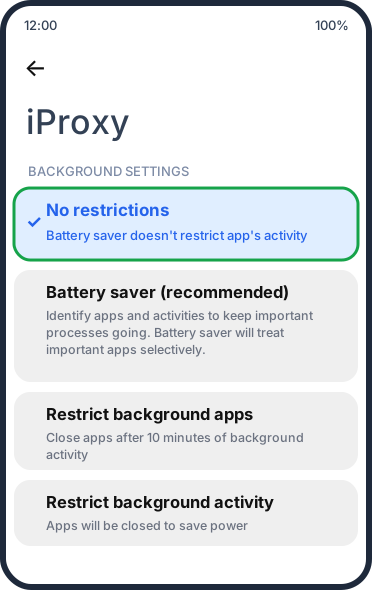
-
Select No restrictions.
-
On the app’s App info screen, open App permissions and turn on Background autostart. If you do not see it, use the Security app: Permissions → Auto-start.
-
If you see Pause app activity if unused on the App info screen, turn it off.
-
Open iProxy, then open the Recent apps view. Press and hold the app card, then tap the padlock.
-
Repeat for OpenVPN for Android.
-
Open Settings → Battery and set the current mode to Balanced or a performance mode, not a power-saving one.
OPPO, OnePlus and realme
These brands share a similar base. The steps below follow ColorOS and OnePlus, and on realme phones the labels may differ.
-
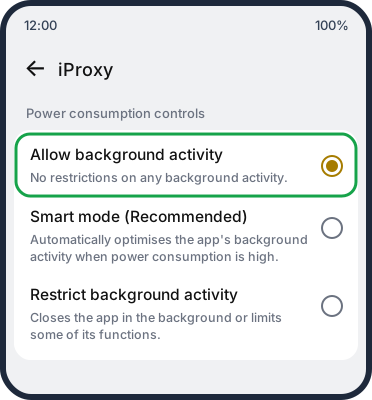
Open Settings → Apps → App management → iProxy → Battery usage.
-
Select or turn on Allow background activity. If the same screen shows Auto launch, turn it on too. On older ColorOS versions it is on the App info screen, as Allow Auto Start-up.
-
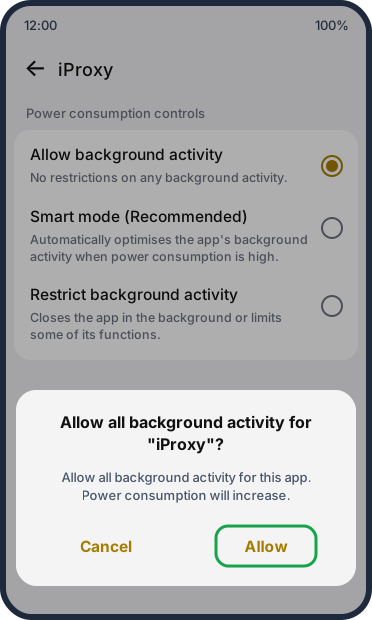
Confirm with Allow when the phone warns about power consumption.
-
If you see Optimize battery use and can change it, select Don’t optimize. It may be on the same Battery usage screen or under Settings → Battery → More settings.
-
At the bottom of the app’s App info screen, turn off Manage app if unused, also shown as Remove permissions and free up space or Pause app activity if unused.
-
Lock the app in Recent apps: open the Recent apps view, tap the three dots or the app icon above the card, and select Lock.
-
Repeat for OpenVPN for Android.
Phones close to stock Android
Google Pixel, Nokia, TCL, Alcatel, REVVL and Orbic phones generally use settings close to standard Android. The stock Android battery guide has the steps for your Android version. It covers Android 9 to 16, with screenshots up to Android 15. On older Nokia phones, dontkillmyapp.com lists extra steps for the manufacturer’s own battery apps.
On Android 8, for example the Alcatel 1, open Settings → Apps & notifications → Special app access → Battery optimization (under Advanced on some phones), switch the list to All apps, select each app and choose Don’t optimize.
vivo and other brands
vivo:
- Open Settings → Apps → iProxy → Battery and select Unrestricted.
- Open Settings → Battery → Background power consumption management, select the app and choose Don’t restrict background power usage. The option can also be called Allow background usage.
- Open Settings → Apps → Special app access → Autostart (Funtouch OS 14 and 15) and turn it on for the app. On other versions, look under Settings → More settings → Applications → Autostart.
- On the App info screen, turn off Remove permissions and free up space, also shown as Manage app if unused.
- Open the Recent apps view, tap the app icon above the card, and select Lock.
- Repeat for OpenVPN for Android.
Huawei and Honor:
- Open Settings and search for Battery optimization. Switch the list to All apps, select iProxy and choose Don’t allow.
- Open Settings → Battery → App launch, on some versions Settings → Apps → App launch. Find iProxy and turn off its switch, so the app is managed manually. In the window that opens, keep Auto-launch, Secondary launch and Run in background turned on.
- Lock the app in Recent apps.
- Repeat for OpenVPN for Android.
Tecno, Infinix and other brands: set both apps to the least restricted battery option, allow autostart if the phone offers it, and lock them in Recent apps. The community site dontkillmyapp.com collects instructions for many manufacturers.
Check that it worked
- Restart the phone.
- Open the battery screen of each app again and confirm your choice is still there. On Xiaomi, check the Data usage screen too.
- Leave the phone on battery for several hours and watch the connection in your iProxy dashboard. If it drops while on battery, the next section lists what else to check.
Do not tap Force stop on a working phone. If you already did, open the app again.
Check the settings again after a major system update, because an update can reset them. dontkillmyapp.com notes that on Samsung, apps can return to the sleeping lists.
If the phone still goes offline
- Mobile data in the background. On some phones, most often Xiaomi in our support cases, iProxy or OpenVPN can lose mobile data in the background even when the battery settings are right. Open iProxy’s data settings, called Data usage or Mobile data depending on the phone, allow background data and unrestricted data usage, and repeat for OpenVPN for Android. If Data Saver is on, turn it off. The Xiaomi steps show this screen.
- Global Battery Saver and Adaptive Battery. Make sure Battery Saver is off and has no schedule, and turn off Adaptive Battery. Our guide to turning off Battery Saver and Adaptive Battery has the steps.
- Background process limit. If Developer options are turned on, open them (on most phones under Settings → System, on Xiaomi under Settings → Additional settings) and make sure Background process limit is set to Standard limit.
- The phone’s battery. On a phone that runs around the clock, charging habits matter too. Our guide to mobile proxy phone battery longevity covers this.
- Connection settings. Go through the settings for stable proxy operation in our guide.
- Choosing a new phone. If one model keeps causing trouble, our list of supported devices can help you pick another.
Still offline? Write to support with your phone model and Android version, and tell us which settings you changed.